Are you looking to add a new income stream?
Low Content products may be just what you are looking for. Low content products are basically products that people fill in themselves, such as planners and journals – you as the product creator are just providing the framework for your customer.
If you are anything like me, you already have had some exposure to using PowerPoint as school or work, so take what you already know and expand those skills. I found using PowerPoint so much less intimidating than using PhotoShop – the norm at the time I started my low content business – and that gave me the confidence to actually create and offer products for sale.
Over time, I also learned that I could share what I have learned to help you build your own business. These 11 courses will help you to create a variety of products to build your own side hustle or new business.
Why PowerPoint?
As I mentioned previously, one of the reasons I chose PowerPoint is that I was already somewhat familiar with the program and I also was comfortable using Microsoft Word which has a lot of similar features. If you already have experience using PowerPoint, and you have it installed on your computer, you are ready to get started.
- Familiar with the Software
- Installed on my Computer
- Allows me Complete Customization
I can create any size product that I need in PowerPoint – and let tell you the Re-use Slides feature will save you a ton of time. Right from the start I was able to create professional looking products – and I don’t have any design training.
Here’s a Brief bit about each course–
- Create a Planner in PowerPoint
Design dated/undated planners, layouts, and add functional elements - Create Digital Stickers in PowerPoint
Make functional sticker sets for use in digital planners - Create Coloring Pages in PowerPoint
Turn shapes and graphics into coloring pages—no drawing skills needed - Create Digital Papers in PowerPoint
Design seamless pattern backgrounds and printable papers using PowerPoint’s built-in tools. - Using Master Slides in PowerPoint
Save time and create cohesive designs with Master Slides (great for journals/planners) - Create Bookmarks & Greeting Cards in PowerPoint
Design fun, giftable products perfect for Etsy or KDP extras - Create Clipart in PowerPoint
Use PowerPoint shapes to build original, resellable clipart - Using Icons in PowerPoint
Creative ways to use & alter icons already included - Create a Digital Phone Planner in PowerPoint
Build a tap-and-swipe planner designed for mobile use - Create a Digital Recipe Planner in PowerPoint
Design a digital recipe book with hyperlinked pages & tabs - Create Digital Party Invitations in PowerPoint & Canva
Combine tools to make customizable invitations for any occasion

Create a Planner in PowerPoint
If you’ve ever dreamed of designing your own planner but felt overwhelmed by complicated software, this course is for you. You’ll learn how to create beautiful, functional daily, weekly and monthly planner pages using nothing but PowerPoint.
What You’ll Learn:
-
How to set up your page sizes and margins
-
Creating layouts for daily, weekly and monthly spreads
-
Learn to use Tables and Shapes
-
Exporting your planner to sell
Perfect For:
-
Etsy sellers, printable creators, coaches, teachers, or anyone who wants to design their own planner pages from scratch.
🎥 Want a sneak peek of my teaching style?
Check out this free video where I show you how to create a weekly planner page using PowerPoint. It’s a step-by-step mini lesson that gives you a taste of what you’ll get in the full course:
👉 Watch the tutorial on YouTube
(Or embed the video here for extra engagement!)

Create Digital Stickers in PowerPoint
Stickers are fun to make—and even more fun to sell! In this course, you’ll learn how to design digital stickers using only PowerPoint. Whether you’re making functional planner stickers or decorative designs for digital notebooks, this course shows you exactly how to bring your ideas to life.
What You’ll Learn:
-
How to design functional planner sticker sets
-
Creating PNG files with transparent backgrounds for digital use
-
Tips for creating printable sticker sheets
-
Organizing your sticker elements into cohesive packs
Perfect For:
-
Digital planners, Etsy sellers, or anyone who wants to sell or use functional planner stickers for use in digtal planners.
Create Coloring Pages in PowerPoint
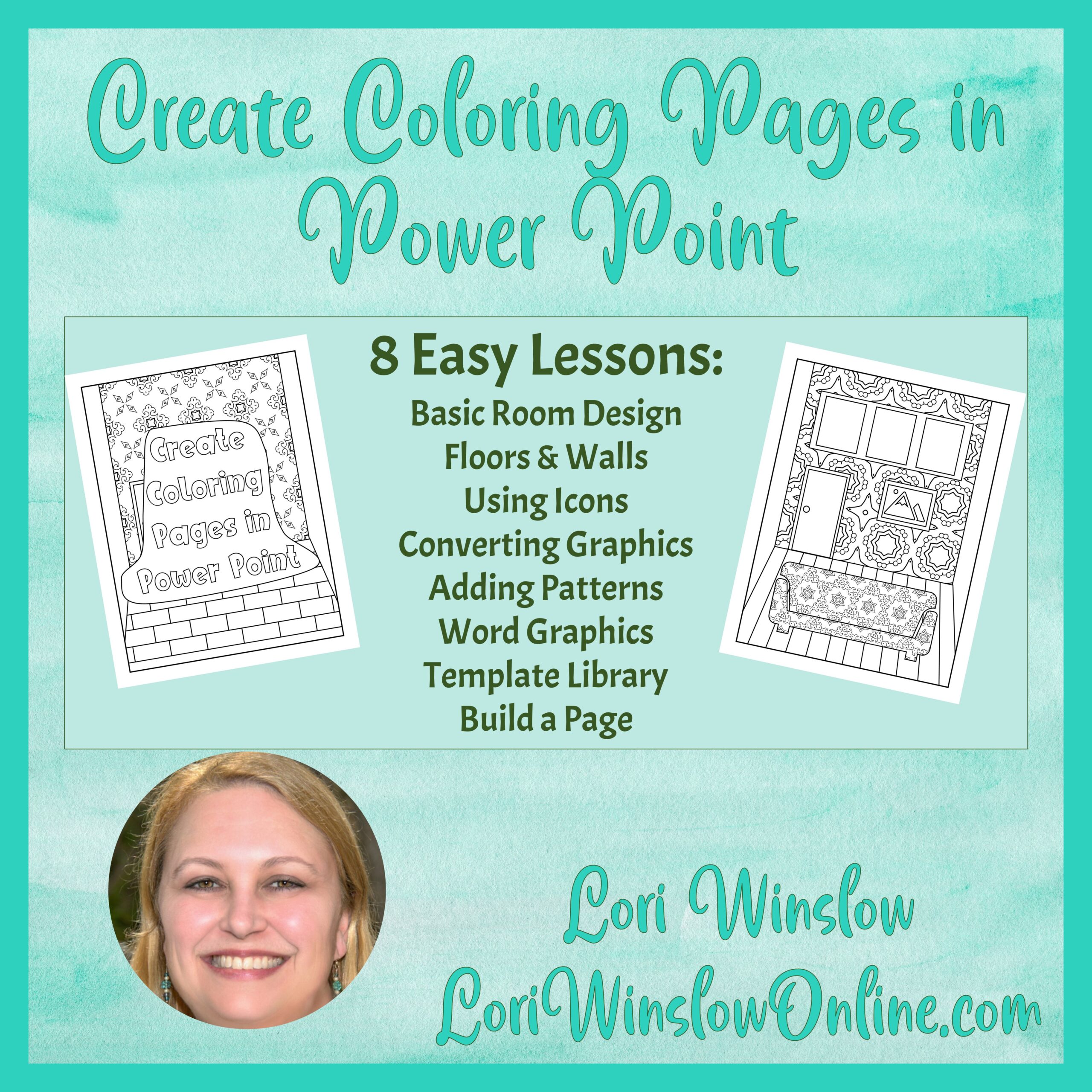
Think you need to be an artist to make coloring pages? Think again! This course walks you through how to use PowerPoint’s shapes, outlines, and layout tools to create fun, unique coloring pages for kids or adults—no drawing required.
What You’ll Learn:
-
How to use PowerPoint shapes to build coloring-friendly designs
-
Creating mandala-style patterns and character-based pages
-
Tips for balancing white space and detail in your layouts
-
Exporting your designs to sell
Perfect For:
-
KDP authors, teachers, and creative entrepreneurs who want to publish custom coloring books or sell printable pages.

Create Digital Papers in PowerPoint
Digital papers are a must-have for planners, scrapbooks, and printable designs—and you can create your own in PowerPoint without needing Photoshop or Illustrator. This course shows you how to build pattern-based backgrounds that look professional and polished.
What You’ll Learn:
-
How to design seamless patterns using PowerPoint shapes and tools
-
Creating themed collections for holidays, seasons, or specific niches
-
Tips for exporting high-resolution JPG or PNG files for commercial use
-
Ideas for using your digital papers in your own products or to sell as standalone assets
Perfect For:
-
Designers, printable sellers, and anyone who wants to create their own backgrounds, textures, or filler pages to use or sell.

Using Master Slides in PowerPoint
If you’re creating planners, journals, or workbooks, Master Slides are your secret weapon for saving time and keeping your designs consistent. In this course, you’ll learn exactly how to set them up and use them like a pro.
What You’ll Learn:
-
How to create and customize Master Slides for your templates
-
Using placeholders for easy drag-and-drop layouts
-
Setting up reusable design elements like headers, footers, and page numbers
-
Tips for updating your entire project in seconds
Perfect For:
-
Anyone designing multi-page documents like planners, workbooks, or journals who wants to simplify the design process and create templates they can reuse again and again.
Create Bookmarks & Greeting Cards in PowerPoint
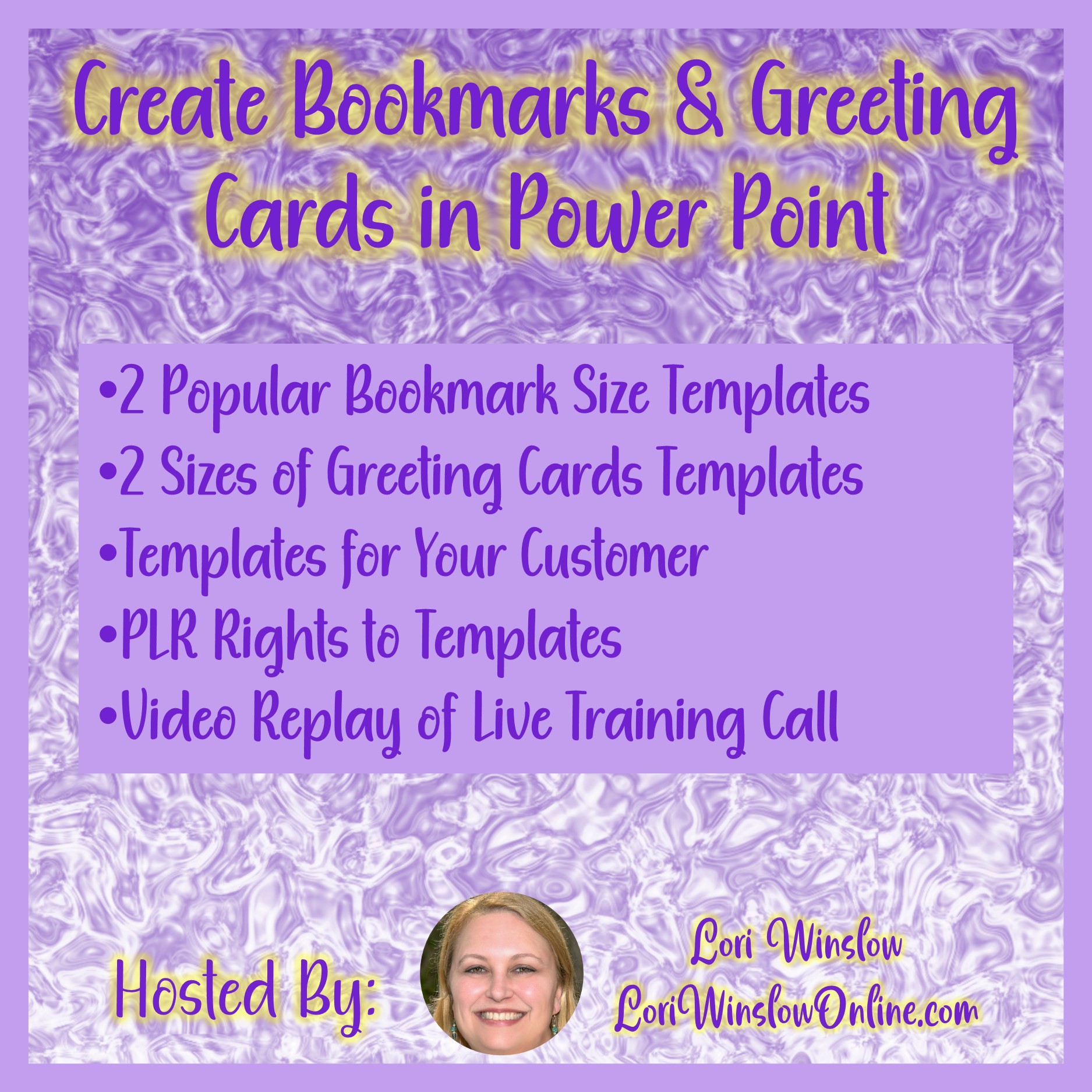
Small products can make a big impact! In this course, you’ll learn how to design printable bookmarks and greeting cards using PowerPoint—perfect for adding to your shop, creating seasonal freebies, or making quick gifts.
What You’ll Learn:
-
How to design standard-size bookmarks and folded greeting cards
-
Choosing layout styles that stand out
-
Tips for setting up printable PDF files with multiple items per page
-
Creative ideas for seasonal, inspirational, or niche-specific designs
Perfect For:
-
Etsy sellers, book shop owners, and anyone who wants to create quick, easy, and fun products their customers will love.
Create Clipart in PowerPoint
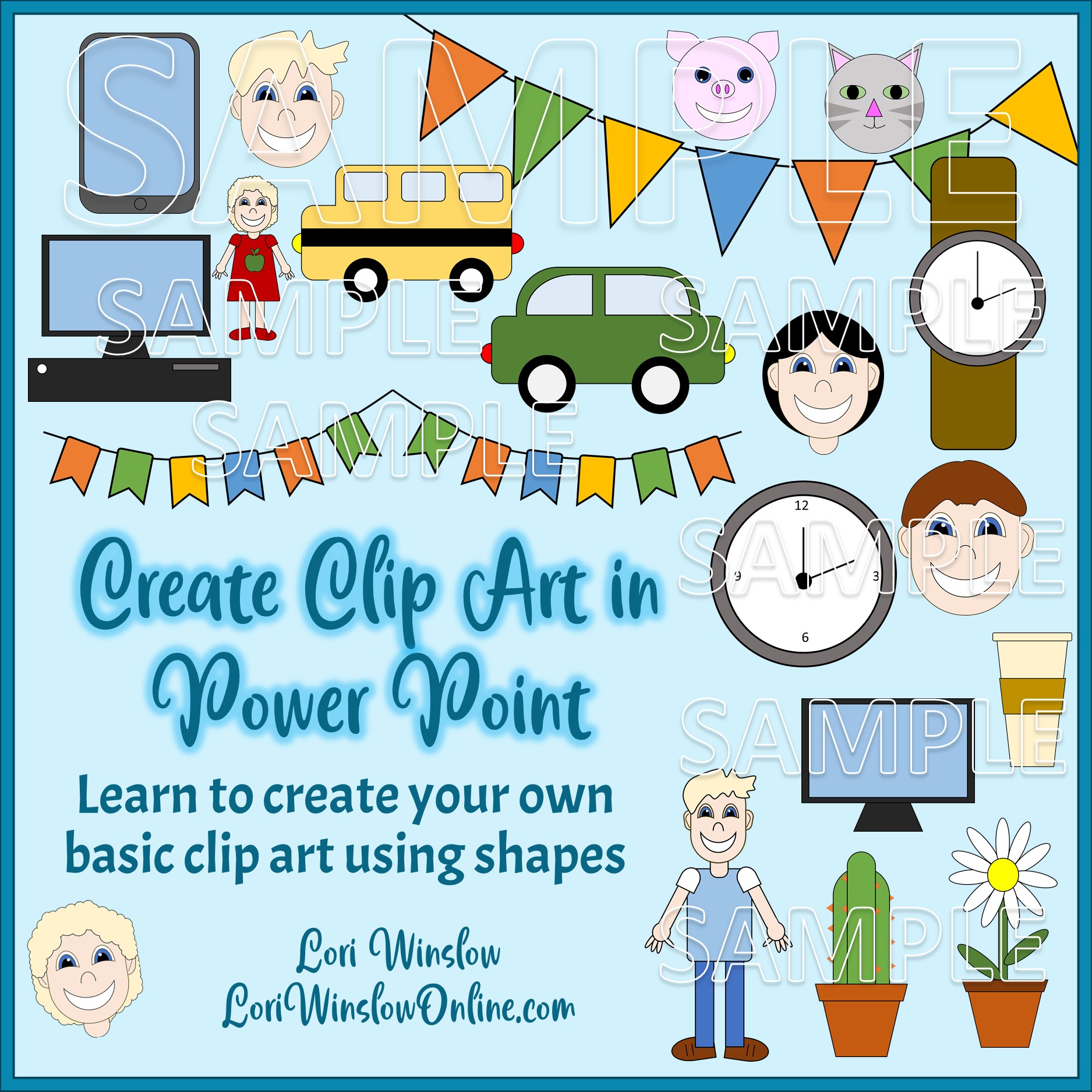
You don’t need fancy design software to create your own clipart! This course shows you how to use PowerPoint’s built-in shapes and tools to design original, high-quality clipart that’s fully editable and perfect for commercial use.
What You’ll Learn:
-
How to build simple and complex illustrations using shapes
-
Grouping, layering, and recoloring techniques for unique designs
-
Saving your clipart as transparent PNGs or editable elements
-
Ideas for creating characters, objects, and themed sets
Perfect For:
-
Creators who want to add a personal touch to their products or sell their own original clipart sets online.

Using Icons in PowerPoint
Icons can elevate your designs, add visual interest, and communicate ideas at a glance. In this course, you’ll discover how to creatively use PowerPoint’s built-in icon tools to add polish and personality to your low content creations.
What You’ll Learn:
-
How to insert and customize icons in PowerPoint
-
Tips for resizing, recoloring, and layering icons for visual impact
-
Creative ways to use icons in planners, journals, covers, and more
Perfect For:
-
Designers and product creators who want to use visuals more effectively and speed up their workflow, or are worried about usage rights.

Create a Digital Phone Planner in PowerPoint
Take planning on the go! In this course, you’ll learn how to design sleek, swipeable phone-sized planners in PowerPoint, complete with clickable tabs and layouts made for touchscreens.
What You’ll Learn:
-
How to set up phone-friendly page dimensions
-
Designing layouts that work on small screens
-
Adding hyperlinks for navigation between sections
-
Exporting your planner for use in GoodNotes or similar apps
Perfect For:
-
Digital planner creators, productivity fans, and sellers who want to offer mobile-optimized products.

Create a Digital Recipe Planner in PowerPoint
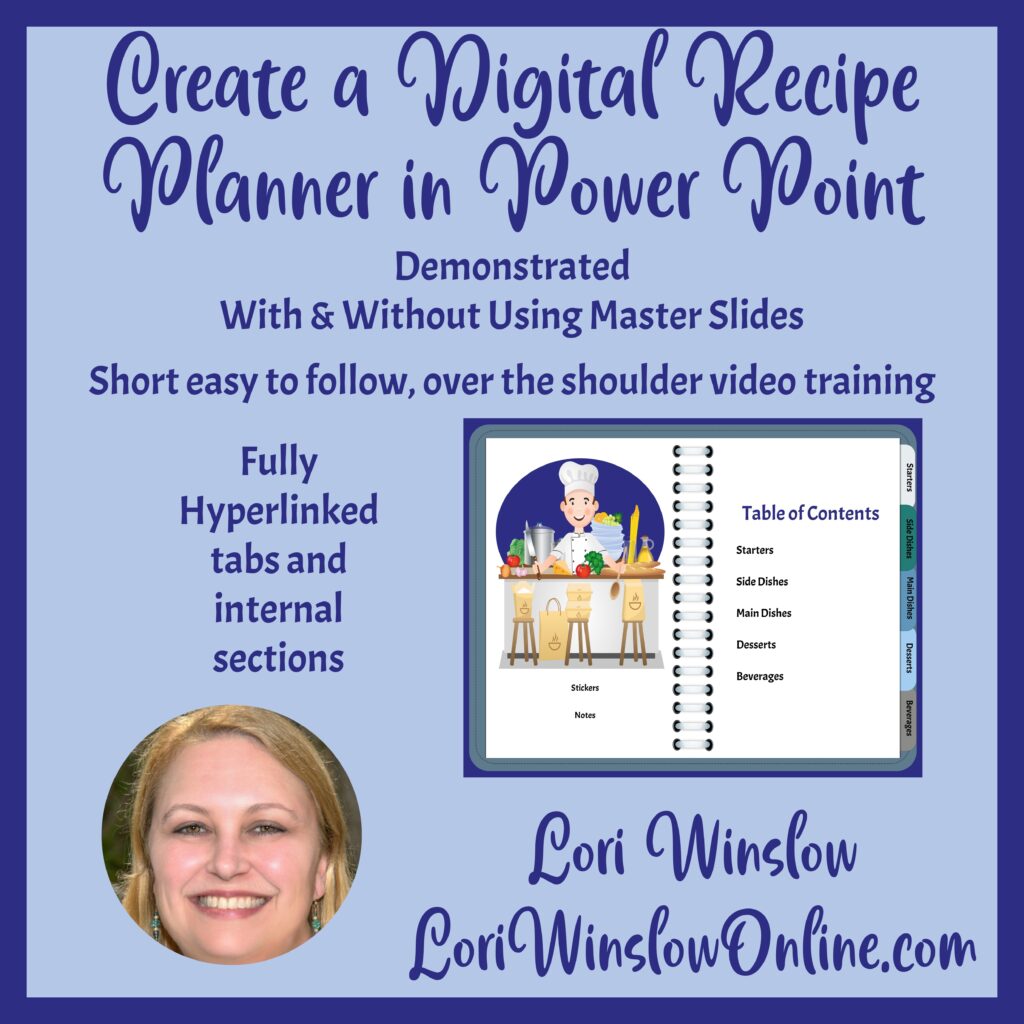
Combine form and function with a beautiful digital recipe planner your customers will actually use. This course walks you through how to build a tabbed and hyperlinked recipe planner using PowerPoint with and without using Master Slides.
What You’ll Learn:
-
Basic recipe page layout
-
Adding sections and tabs
-
Adding hyperlinks for functionality
-
Exporting as a hyperlinked PDF for digital use
Perfect For:
-
Food bloggers, lifestyle creators, or anyone who wants to sell (or gift) a digital recipe book.

Create Digital Party Invitations in PowerPoint & Canva
Make party planning even more fun with custom invitations! In this course, you’ll learn how to design printable and fillable digital party invitations using both PowerPoint and Canva—no design experience needed.
What You’ll Learn:
-
Designing invitations for birthdays, holidays, baby showers, and more
-
Using PowerPoint for layout and text placement
-
Sell them in Canva as editable templates
Perfect For:
-
Creators looking to add personalized invitations to their shop or make easy gifts for friends and family.
Start With One, or Explore Them All
These 11 PowerPoint courses are a great way to build your skills, boost your confidence, and start creating products you can sell or share. Whether you want to design planners, digital papers, coloring pages, or party invites, there’s something here to help you take that next step.
But these aren’t my only courses! If you’re ready to explore even more ways to turn your ideas into income, head over to my full course shop to see everything I offer.
👉 Click here to visit my course shop and see all available trainings
Wherever you decide to start, I’m excited to help you create beautiful, purposeful products—one PowerPoint slide at a time.